MFA Provider and Users
Before anyone can connect, the organization needs an MFA provider, and each user who will connect needs to be enrolled with it.
Step 1: Choose the MFA Provider
Open the account menu (top right), choose Settings → MFA Provider, and set up the provider that sends the push:
| Provider | What to enter | How users enrol |
|---|---|---|
 Duo Security Duo Security | API hostname, Integration key, Secret key | In Duo |
 Okta Verify Okta Verify | Okta org URL, API token | In Okta, with Okta Verify |
Only one provider is active at a time. The AuthNull Authenticator app is coming soon.
Without an MFA provider, every database login is refused.
Step 2: Add Users
The users who will connect must exist in the console.
- One by one or in bulk: go to Users, click Add Users, and choose Add User or Import Users. Invited users receive an email to set their password.
- From a directory: in the Identity product, go to Identity Sources → Add identity source and choose Active Directory or EntraID.
Users sign in to the console at /ssc/signin. On first sign-in they set up a second factor: an authenticator app code (TOTP, scanned from a QR code, with recovery codes), a passkey, or a push.
Step 3: Enrol Users with the Provider
Users enrol in Duo Mobile or Okta Verify through your Duo or Okta organization. Their account there must use the same email address as their AuthNull console account - that is how the push is routed.
Step 4: Switch to the Database Product
Open the product switcher at the top of the sidebar (Switch product) and choose Database. The sidebar then shows Dashboard, Databases, Agents, Users, Policies, and Connections.
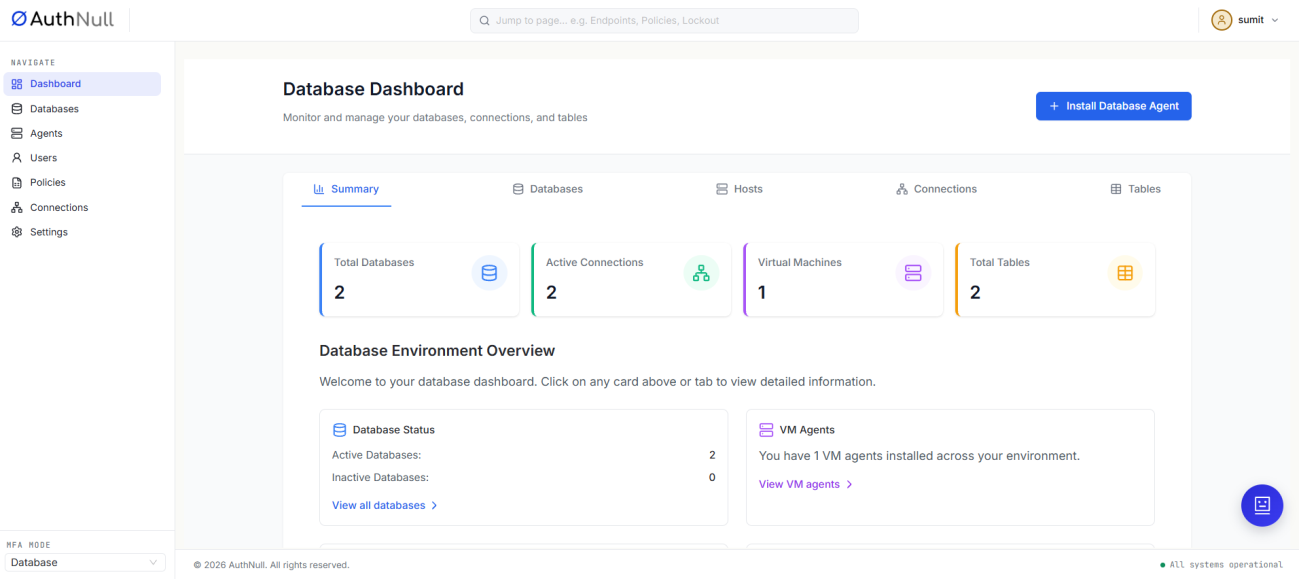
Database Dashboard
Next Steps
Continue to Agent and ProxySQL to install the database agent.